


Porn on PS5 Browser, USB, Privacy
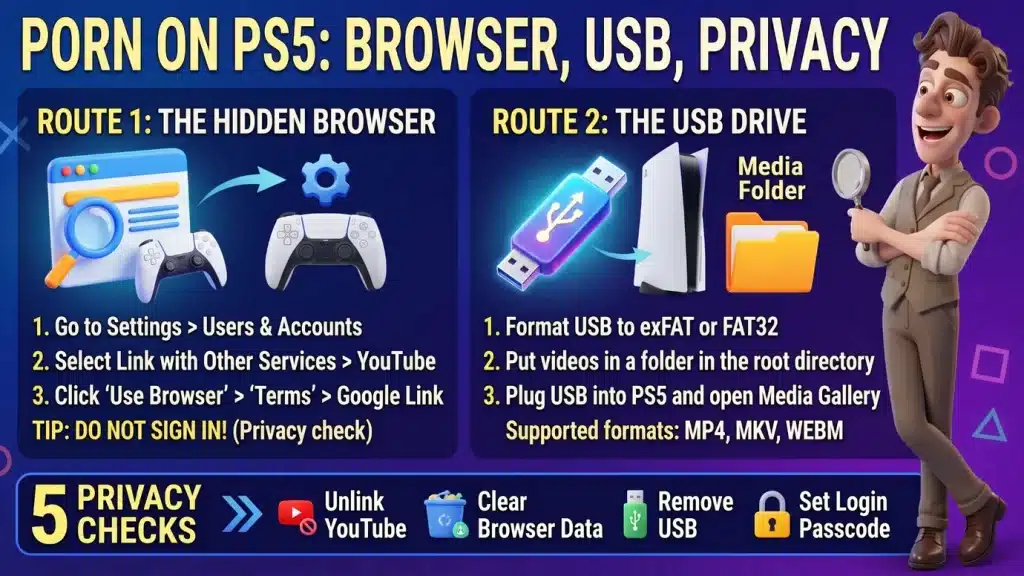
Image created using advanced AI technology, professionally refined by Private Eye Blog editorial team.
The PS5 has no browser app in its menu, but it gives you two ways to put a video on the big screen. Here is each route, what it does best, and how to keep a shared console private.
Does the PS5 let you watch porn?
Yes, through 2 routes: a hidden web browser, or the Media Gallery app playing video files from a USB drive. Both put the video on the same TV your games use.
The USB route comes from PlayStation's own support page. The browser route is not in PlayStation's help pages: it comes from two tech-press guides that both describe the same menu path, and PlayStation's parental-controls page confirms the console has web browsing that can be restricted.
The steps below come from the official help pages listed at the bottom. Menus can change after a system update, so if your screen looks different, go by what you see.
The browser lets you look a site up and stream it. The USB drive plays a file you already have, so there is no site to look up.
Before you pick a route, decide what the night looks like with the guide to picking porn by mood and time.
Which route should you pick?
Pick the route that matches what you want on the screen tonight. Find yours in this list:
- You want to look a site up and stream it: use the hidden browser (sections 03 and 04).
- You want to play a video file you already have: use the USB drive and Media Gallery (sections 05 and 06).
- Other people use the console: read section 08 before you try either one.
The browser route can leave website data, cookies or a linked YouTube account on the console, while the USB route leaves a drive with your file names on it. Section 08 shows how to clear both.
For the rest of the routine, the 10-minute plan for a night in covers minutes, mood and privacy before you press play.
What can the hidden browser do?
It is a simple, light browser: you search for a site by name and open it on the big screen. It skips the extras, so you move with the controller: Online Tech Tips lists no address bar, no tabs and no refresh button, and no mouse or keyboard support.
With no address bar, you search for the site by name each time you want it.
For video, Online Tech Tips lists streaming as working, while Android Authority is more cautious, so start with one short clip before you plan a night around this route.
If pop-ups or redirects show up on a site, why porn ads appear and how to block them explains what causes them.
How do you play videos from a USB drive?
You prepare the drive on your computer, plug it into the PS5 and open Media Gallery, in 4 steps. PlayStation's support page describes them:
- Format the drive as exFAT or FAT32 on your computer. Formatting erases the drive, so use an empty one.
- Create a folder in the root directory of the drive and put your video files inside it.
- Plug the drive into the PS5.
- Open Media Gallery from the games home, select USB and pick your file.
The folder matters: PlayStation says to place the files in a folder in the root directory, not loose on the drive.
The PS5 only plays the formats it supports, so check section 06 before you copy anything.
Which video files will the PS5 play?
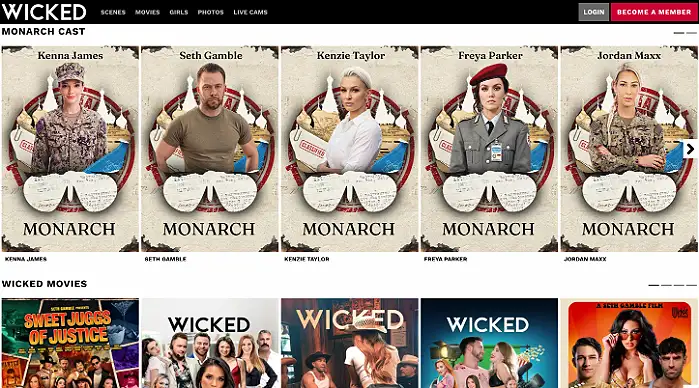
A premium studio page with its newest cast and movies up front
The PS5 plays 3 file formats from a USB drive, each with its own conditions. PlayStation's page lists them:
- MP4: H.264/MPEG-4 AVC High Profile Level 5.2 video with AAC LC audio.
- MKV: H.264/MPEG-4 AVC High Profile Level 4.2 video with AAC LC audio.
- WEBM: VP9 video with Opus audio.
The maximum video resolution is 3840 x 2160. PlayStation also says Media Gallery will not play copyright-protected files, and that some content distributed over the internet has playback restrictions.
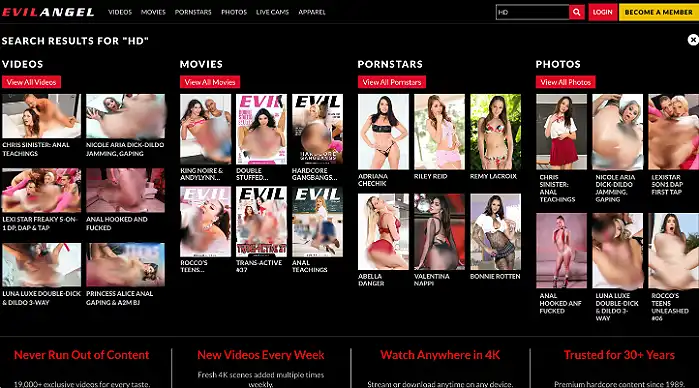
Use only the download button the site itself offers, and only on sites whose page says downloads come with the membership. At the time of writing, Wicked's page lists "1080p HD Streaming & Downloads" and Evil Angel's says "Stream or download anytime on any device".
Neither page says which file format its downloads use, so check the file's type before you copy it to the drive. If a file is not in one of the three formats above, the PS5 may not play it. For picking quality and finding whole scenes, read our guide to full-length scenes in HD.
How do the two PS5 routes compare?
Here are the 2 routes next to each other: what each one is for, how you start it and what it leaves behind.
| Route | Best for | How you start it | Traces left |
|---|---|---|---|
| Hidden browser | Looking a site up and streaming it | Settings, Users and Accounts, Link with Other Services, YouTube, Use Browser, Terms, Google | Cookie and website-data options sit in Settings, System, Web Browser |
| Media Gallery | Playing an MP4, MKV or WEBM file you already have | Format the drive exFAT or FAT32, make a folder in the root, plug it in, open Media Gallery | The drive and its file names; PlayStation's page does not mention a play history |
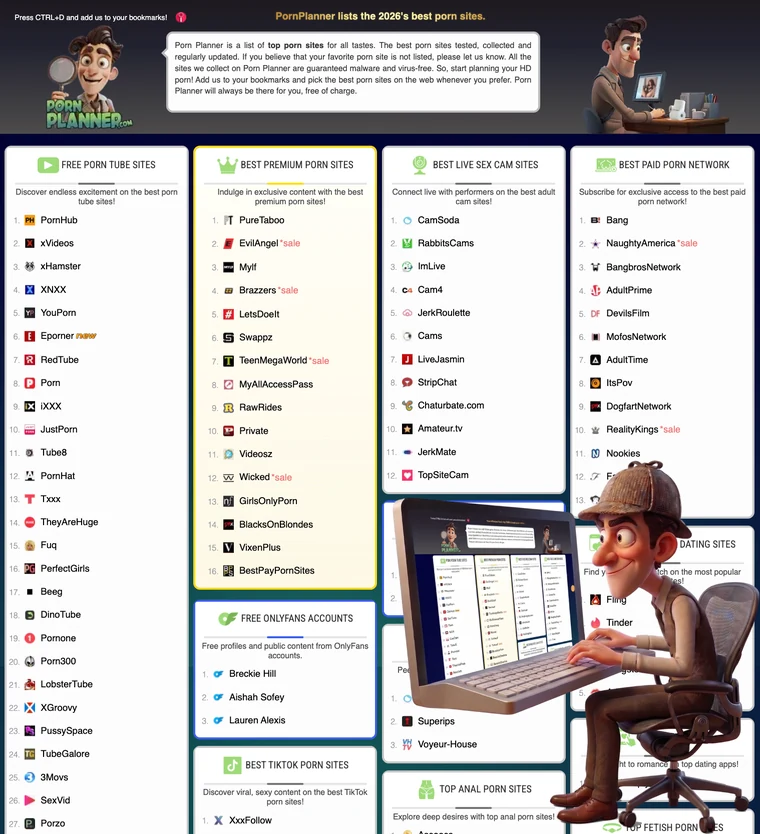
Want to compare sites instead of routes? The directory at the end of this guide sorts tubes and premium sites into categories.
Is the PS5 the right device for your TV?
It is a great pick when it is the device already plugged into your screen. A TV with its own browser is another option, because you type the address with the TV remote.
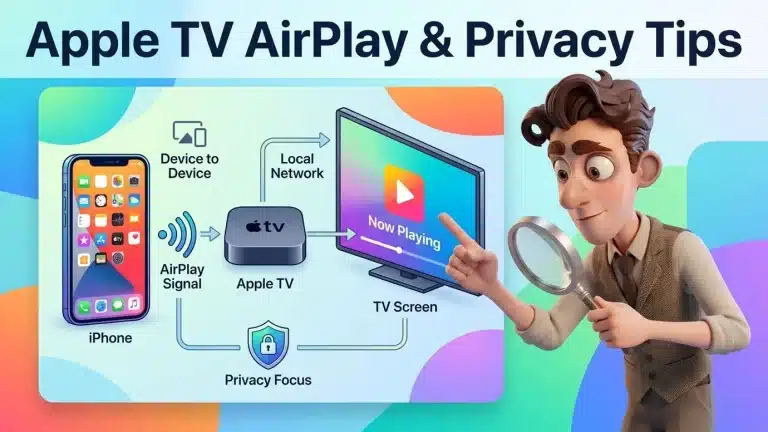
Samsung and LG TVs document a built-in browser, and on other TVs you can cast from a computer or use AirPlay from an iPhone. Our step-by-step guide to TV browsers, casting and AirPlay covers each one.
FAQ
Short answers to what people usually ask about the PS5 and adult sites.
Does the PS5 have a web browser?
Not as an app in its menu. It does have web browsing (PlayStation's parental controls can restrict it), and section 03 shows the route that opens it.
Can I type a web address on a PS5?
Online Tech Tips lists no address bar, so you search for a site by name from the Google page instead.
Which video files does Media Gallery play?
MP4, MKV and WEBM, each with the video and audio codecs in section 06, up to 3840 x 2160.
Why won't my file play from the USB drive?
Check four things from PlayStation's page: the drive is exFAT or FAT32, the file sits in a folder in the root directory, the codecs match section 06, and the file is not copyright-protected.
Can a parent lock the browser?
Yes. PlayStation's page says web browsing can be restricted entirely on the PS5, and that a console restriction passcode keeps the person on a restricted account from changing those controls.
- Pick the route by what you want on screen: the hidden browser for streaming sites, the USB drive for a file you already have.
- Use the folder rule: exFAT or FAT32 drive, files in a folder in the root, then Media Gallery.
- Don't sign in on the Google page, because the route works from the Terms page.
- Run the 5 privacy checks: skip the sign-in, unlink YouTube, clear browser data, take the drive and set a passcode.
With the console ready, browse our hand-picked directory of the most popular porn sites, grouped by category, and pick the first scene for tonight.