


How to Watch Porn on Your TV Smart TV, Casting, Fire TV, Apple TV, Roku
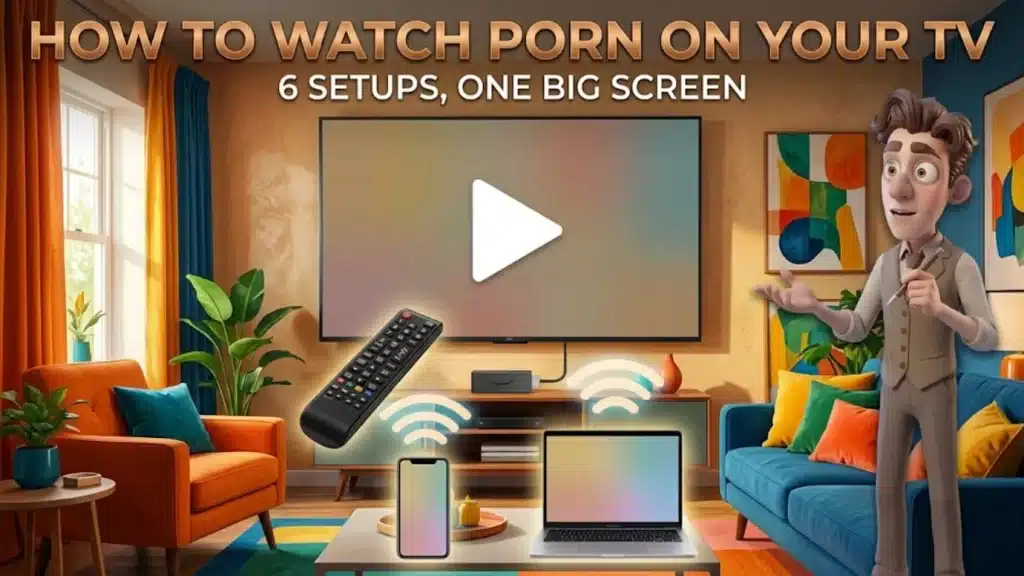
Image created using advanced AI technology, professionally refined by Private Eye Blog editorial team.
Your TV is the biggest screen in the house. Here is how each device gets a site onto it, what stays behind afterward, and how to keep a shared TV clean.
How can you watch porn on your TV?
You have 3 routes: open the site in the TV's own browser, cast or mirror it from your phone or computer, or use the browser on a streaming stick. Which route works depends on the TV or box you own.
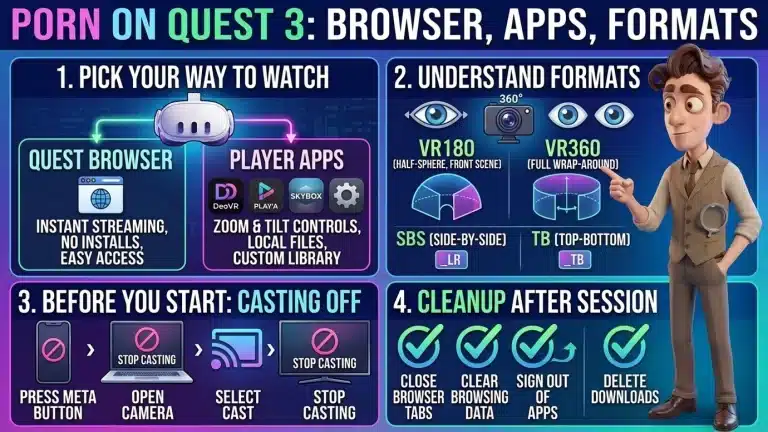
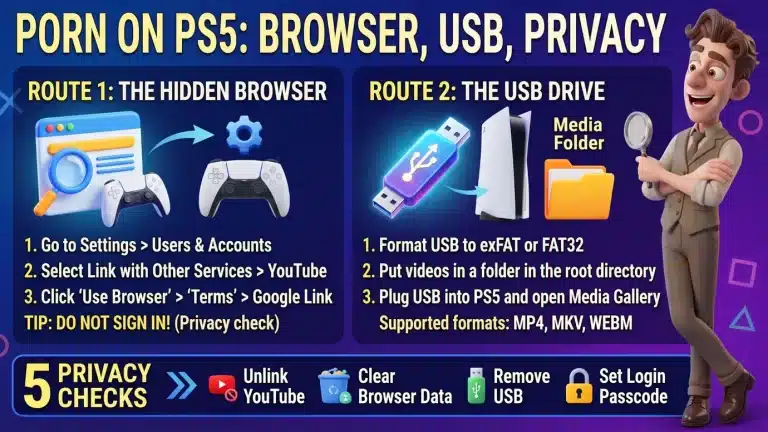
This guide covers Samsung and LG TVs, Chromecast and Google TV, AirPlay and Apple TV, Roku, and Fire TV. The PlayStation 5 works too, through a hidden browser or a USB drive, and has its own guide, linked in the FAQ.
Every setup below comes from the brand's own help page, read at the time of writing, and each one is linked at the bottom so you can check it against your model. I did not run these on a real TV, so treat the menus as a map and your screen as the final word.
Casting sends one browser tab to the TV, and your computer keeps its other tabs to itself. Mirroring copies your whole phone or computer screen, so every alert that lands on your device lands on the TV as well.
Once the screen is sorted, choose what to put on it with a quick way to match tonight's mood to a site.
Which setup should you pick for your TV?
Pick the setup that matches the device you already own, not the one that sounds most advanced. Find your device in this list:
- Samsung or LG smart TV: use the browser built into the TV (section 03).
- Chromecast, Google TV or a TV with Google Cast: cast a Chrome tab from your computer (section 04).
- Apple TV or an AirPlay-compatible TV: mirror your iPhone or iPad with AirPlay (section 05).
- Roku: mirror an Android phone or a Windows computer, or use AirPlay from an Apple device (section 06).
- Fire TV: open the Silk browser on the TV itself (section 06).
If other people use the TV, prefer casting from your own device over typing into the TV. The LG and Fire TV browsers keep a history of the pages you open, and section 08 shows where to clear it.
To plan the whole evening around the TV, a simple routine for a great night in walks you through it.
What works in the browser on a Samsung or LG TV?

Wicked's front page, the kind of site that shines on a big screen
Both brands ship a web browser, and you type the address with your remote. On a Samsung TV you press the Smart button on the remote, choose the web browser, type the address and press Enter. Samsung's page says its settings vary by model and region.
On an LG webOS TV you press Home and open the web browser. Its menu has a History list you can view or delete, Bookmarks, a TV View that splits the screen, and an ad blocker you can switch on. Typing with a remote is slow, so type the address once and add it to your bookmarks.
LG notes that the browser runs as fast as your network allows and keeps a lighter feature set than a computer or phone. If pop-ups show up, switch the ad blocker on, and how to block porn ads and pop-ups covers what else to turn off.
How do you cast from Chrome to a Chromecast or Google TV?
You cast a tab in Chrome in 3 steps and stop it with a 4th, and the sound of that tab plays on the TV. Chrome's help page lists the compatible receivers: Chromecast, Chromecast with Google TV, Google TV Streamer, Chromecast Ultra, and TVs with Google Cast.
- Open Chrome and select the three-dot menu.
- Choose "Cast, save, and share," then "Cast…"
- Select your TV from the list.
- When you finish, select the Cast icon to the right of the address bar, then Stop casting.
On a Mac with macOS 15 or later, Chrome's page says you first need to give Chrome access in System Settings. It also says other tabs keep their sound on your computer when you cast one tab. If you cast the whole screen instead, the sound may play on the computer, so tab casting is the better pick for TV audio.
Both devices need to be on the same Wi-Fi network and Chrome needs to be up to date. If two of you are watching, ideas for watching together on the big screen covers the sound, the notifications and the rules for a shared screen.
How do AirPlay and Apple TV fit in?
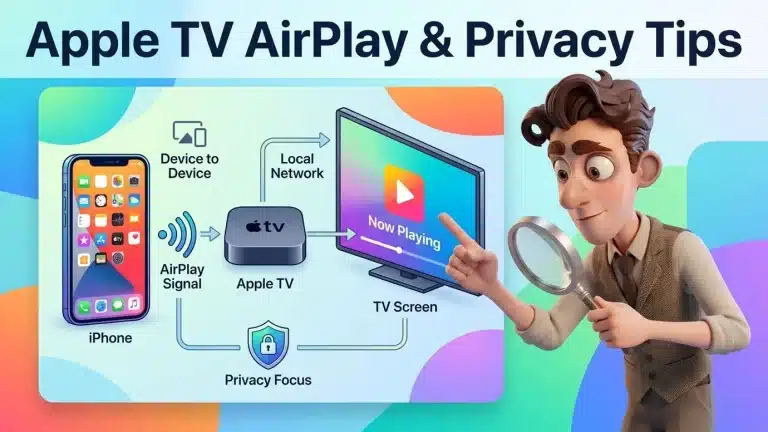
AirPlay lets an iPhone or iPad mirror its screen to an Apple TV, or to a smart TV that supports AirPlay. This is the route this guide uses for Apple TV, and the steps below follow Apple's own help page.
- Put the iPhone or iPad on the same Wi-Fi network as the TV.
- Open Control Center and tap Screen Mirroring.
- Pick your TV from the list. If a passcode appears on the TV, enter it on the iPhone.
- When you are done, open Control Center, tap Screen Mirroring and choose Stop Mirroring.
Apple describes mirroring as showing exactly what is on your device's screen, so a notification banner can show up on the TV too. Switching on Do Not Disturb beforehand helps, since Apple says it silences calls, alerts and notifications.
You can also stream one video with the AirPlay button inside a video app, though Apple points out that not every video app supports AirPlay.
What about Fire TV and Roku?
Adult Time's poster wall, made for the couch
Fire TV has a browser, and Roku has mirroring. On Fire TV you open Apps, then the Internet app, which is the Silk browser, and you steer the cursor with the remote's directional pad. A connected keyboard also works, according to Amazon.
Silk has a Private Browsing mode that removes the pages you visit from your history after you close that tab. Amazon adds that your internet provider or the sites you visit may still see your activity.
On Roku, Roku's own page says most Android devices on version 10.0 or later (Google Pixel and Nexus phones excepted) and Windows 10 and 11 computers can mirror to it, and that Apple devices use AirPlay. Roku and your device must be on the same Wi-Fi. When a device asks to connect, Roku shows 4 options: Always allow, Allow, Block and Always block.
Pick Allow rather than Always allow if the TV is shared, because Always allow lets that device mirror again later without Roku asking first. Before you type any address into a TV, run a 10-minute safety check for any new site.
Which setup does what, at a glance?
Here are the 6 setups next to each other: what each one runs on and what it leaves behind. The last column only says what the official page says.
| Setup | Runs on | What stays behind |
|---|---|---|
| Samsung browser | Samsung smart TV | Samsung's page does not say |
| LG browser | LG webOS TV | A History list you can view or delete |
| Chrome tab cast | Chromecast, Google TV, Google Cast TV | Your own Chrome, so its history rules apply |
| AirPlay | iPhone or iPad to Apple TV or AirPlay TV | Nothing on the TV; notifications can show while you mirror |
| Roku mirroring | Roku with Android 10.0+ or Windows 10 and 11 | Your device on the allowed list, if you pick Always allow |
| Fire TV Silk | Fire TV | A history you can clear, or Private Browsing |
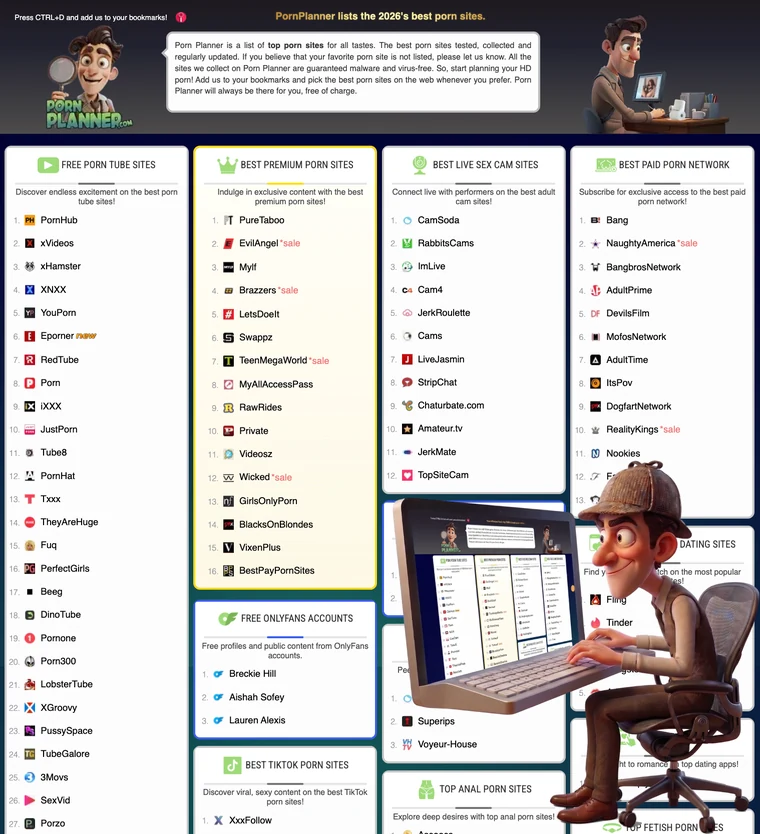
If you would rather compare sites than setups, the PornPlanner directory linked at the end of this guide sorts free tubes and premium sites by category.
What traces should you clean up afterward?
Run these 5 cleanup checks before you hand the remote back. Each one is quick.
- TV browser history. On LG, open History and delete it. On Fire TV, open Menu, then Settings, and use Clear History and Data for the last 24 hours or for everything.
- Private mode, and its limits. A private window keeps the page out of the history on that device. Amazon's own page warns that your internet provider or the sites may still see the visit.
- Stop the connection. End casting from the Cast icon in Chrome, end mirroring with Stop Mirroring on an iPhone, and on Roku press Home on the Roku remote.
- Roku permission. If you picked Always allow, that device can mirror again without a prompt, so on a shared TV pick Allow next time instead.
- The site's own lists. Open the site's menu and look for a history or continue-watching list, and log out on a TV other people use.
A private window does less than people assume, and what incognito mode hides and what it doesn't lays out who can still see the visit.
What about cable adult channels and YouTube TV?
Girlsway's front page, ready for the big screen
Adult channels on cable or satellite come from your provider's package, not from the TV. I did not find an official provider page I could cite, so check your own provider's channel list and its parental-controls page.
For YouTube, Google's policy says explicit content meant to be sexually gratifying is not allowed on YouTube, so the YouTube app is not the place to look. I found no YouTube TV page listing adult channels, so the routes in sections 03 to 06 are your way to the big screen.
FAQ
The questions that come up when the TV joins the night, answered briefly.
Can I watch porn on a smart TV?
Yes, through the TV's own browser or by casting or mirroring from your phone or computer. Samsung and LG both document a built-in web browser (section 03), and sections 04 to 06 show the other routes.
Is casting or mirroring better?
Casting a tab is tidier, because Chrome plays that tab's sound on the TV and keeps your other tabs off the screen. On an iPhone, AirPlay mirroring is the route this guide uses, and Do Not Disturb keeps its notifications quiet.
Why does the video stutter on the TV?
Chrome's page asks for a strong Wi-Fi connection and both devices on the same network, so start by bringing your phone or computer closer to the router. For quality settings and buffering fixes, read where to find whole scenes in HD and keep them smooth.
Does the PS5 work?
Yes, and it gets its own guide: the PS5's hidden browser and USB drive, step by step.
Can I watch porn on YouTube TV?
YouTube's policy bans explicit content meant to be sexually gratifying, and I found no YouTube TV page that lists adult channels. Use one of the routes above instead.
- Pick the setup by the device you own: browser on Samsung, LG and Fire TV, casting on Chromecast, AirPlay on Apple, mirroring on Roku.
- Cast a tab instead of the whole screen when you can, so the sound goes to the TV and your other tabs stay off it.
- Switch on Do Not Disturb ahead of mirroring, because the TV shows your whole screen.
- Run the 5 cleanup checks: history, private mode, stop the connection, Roku permission and the site's own lists.
With the TV ready, browse our hand-picked top porn sites, sorted by category, and choose what goes on the big screen.